
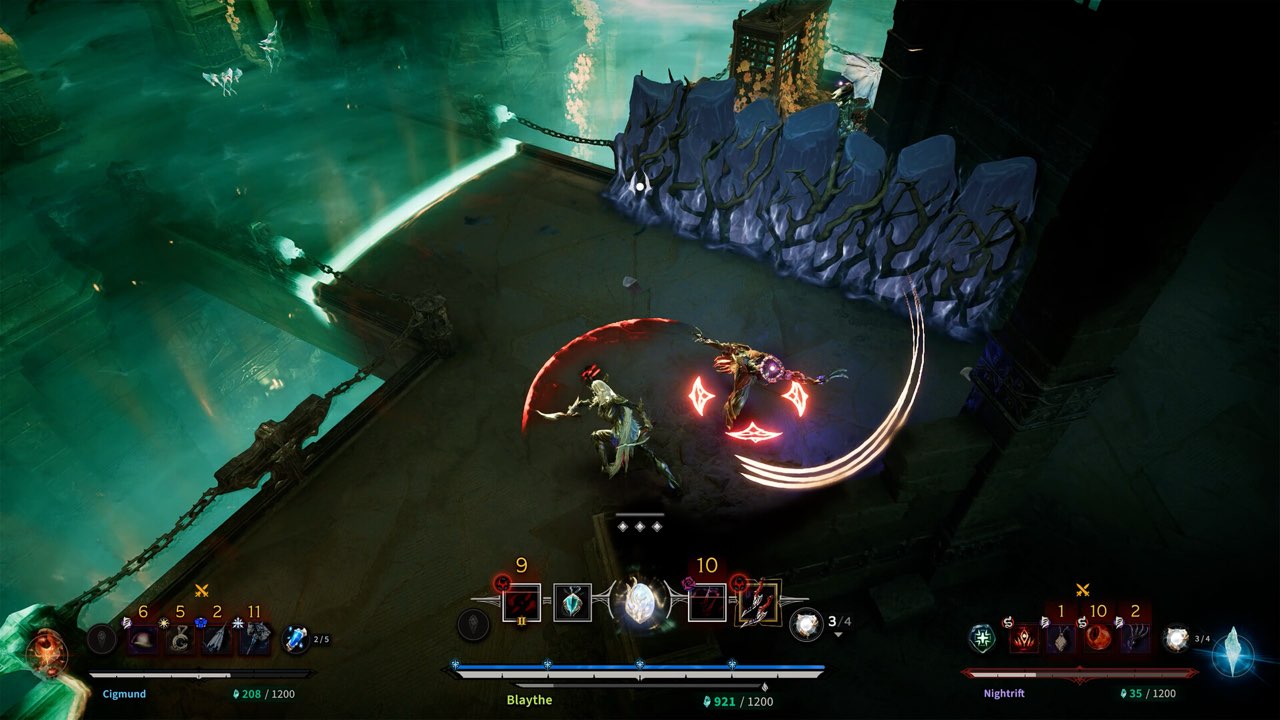
Verified Bindings at a Glance
Only a handful of inputs are spelled out in Bonfire's own patch notes. The list below contains just those, plus the settings that the notes confirm exist. Movement, aim, attack, weapon swap, dodge and interact are real actions, but their launch defaults were not published in a source we could verify. Read them from the Controls menu on your own device.
- Show Ground Items: Left Alt on keyboard, D-pad Left on controller.
- Map: Alt on PC, listed as a separate action from Show Ground Items.
- Transform: can be bound to a single button on gamepad.
- Hold to Attack: a Gameplay setting that repeats attacks with the equipped weapon.
Show Ground Items and the Map
Show Ground Items is the held action for inspecting loot near you. The Click GG's Relics explainer confirms the two input labels and explains what the held action reveals. This matters because Relics change your abilities, so you want to know what a drop is before you swap. Use it before you pick up gear in the middle of a fight.
The November notes also list Alt as the PC map binding. Because the notes describe map and Show Ground Items as separate actions, check how your own build labels them. If two actions feel like they overlap, the Controls menu is the place to rebind one. Your on-screen prompts should match whatever you set there.
Controller Settings Added in November
The provisional 1.0 notes list several controller changes. Bindings are now retained per controller, so a custom layout should stay with the pad you set it on. The notes also mention controller cursor attraction and the new single-button Transform option. Together, these make a gamepad setup less fiddly than in earlier tests.
The November 17 1.0.0a hotfix updated the controller prompts in Settings to match the current controller art. If you used a guide or screenshot from before that date, the button icons may look different now. The actions themselves did not change in that hotfix. Go by the prompts you see in game.
Transform and Hold to Attack
Transforming into an Eternal requires four matching Relics, and then you use the Transform action. On gamepad, that action can now sit on one button, which helps because the channel can be interrupted by enemy crowd control. A faster, more reliable input gives you a better chance to finish it. See the Eternal transformation guide for when to commit.
Hold to Attack lives in Gameplay settings. With it turned on, holding the input repeats attacks with your equipped weapon. Try it in Training Spires to see whether you prefer it to pressing for each attack. You can switch it off again in the same menu.
Dodging and Boosted Dodge
The Click GG's boosted dodge guide explains that timed dodge chaining works on both mouse and keyboard and controller. It points players to the live binding screen to find which input is assigned to dodge. Because the default dodge key is not listed in Bonfire's notes, we do not state one here. Practice the timing against bots before relying on it in PvP.
Aim Assist and Mixed-Input Squads
Bonfire's September crossplay trailer describes controller players and mouse-and-keyboard players sharing one squad. A September Tower Hour excerpt about controller design says there was no controller aim assist in the Crossplay Beta. That statement describes the beta, not necessarily launch. Check your launch settings for the current options.
On Xbox, the store listing includes console keyboard and mouse support. That means an Xbox Series X|S player is not locked to a controller. Squads can mix inputs and platforms through crossplay. Use the setup that lets you aim most consistently.
Inspecting Relics Before You Swap
Relics fill four slots: the crown, the amulet and two weapons. Each one determines part of your ability kit, so a careless swap can remove a skill you rely on. Two matching pieces from one Eternal set activate a set bonus, and four let you transform. Holding Show Ground Items before you swap is the simplest way to protect a set you are building.
Settings to Check Before Your First Match
Spend a minute in the menus before you queue. The items below are the ones Bonfire's notes confirm exist. Anything not on this list may still be in your build, but we could not verify its name or default. Write down any binding you change so you can restore it later.
- Controls: confirm movement, aim, attack, weapon swap, dodge and interact.
- Show Ground Items and Map: check that they sit on inputs you can reach mid-fight.
- Transform: on gamepad, consider the single-button option.
- Gameplay: decide whether you want Hold to Attack on.
Why Older Keybind Charts Are Unreliable
A February PC beta settings capture from volx.jp shows the default bindings of that test. Several of those bindings changed later, so the chart is history rather than a launch reference. The same caution applies to video guides recorded during earlier betas. When a source and your Controls menu disagree, your Controls menu wins.
Practicing Inputs Without Pressure
Learning Spires is a three-floor 3v3 introduction that follows the Tutorial. Training Spires then adds two friendly bots and a difficulty setting. Both let you repeat inputs without a live squad depending on you. With the free Friend Pass, Training is available on your own.
Checking Your Setup in the Tutorial
The Tutorial and Training are the right places to confirm every input. Run through movement, aiming, attacking, weapon swap, dodge and interact before your first live match. Then open the Controls menu and adjust anything that feels awkward. The beginner guide explains the order of practice modes.
Frequently Asked Questions
Does Arkheron support controller on PC?
Yes. Arkheron supports both mouse and keyboard and gamepad, and the November notes add per-controller binding retention.
What key shows ground items in Arkheron?
Left Alt on keyboard and D-pad Left on controller, according to Bonfire's November patch notes.
Can I put Transform on one button?
Yes. The November notes added an option to bind Transform to a single button on gamepad.
Does Arkheron have aim assist?
A September Tower Hour excerpt said there was no controller aim assist in the Crossplay Beta. Check your launch settings for the current options.
Why do my controller prompts look different from older videos?
The November 17 1.0.0a hotfix updated the controller prompts in Settings to match the current controller art. Older videos show the previous icons.
Where is the full Arkheron keybind list?
A full launch-default chart was not available in verified English sources. Use the Controls menu in game, which shows the bindings for your build and device.
Official Trailer
Sources and Further Reading
- Bonfire Studios — Provisional 1.0 patch notes (November 5, 2026)
- Bonfire Studios — 1.0.0a hotfix (November 17, 2026)
- The Click GG — Arkheron Boosted Dodge
- The Click GG — Arkheron Relics Explained
- volx.jp — February PC beta keyboard and controller settings
- Arkheron — Built for Crossplay (YouTube)
- Arkheron — Do Console Players Have An ADVANTAGE in Arkheron (YouTube)